Connecting Your First WordPress Site
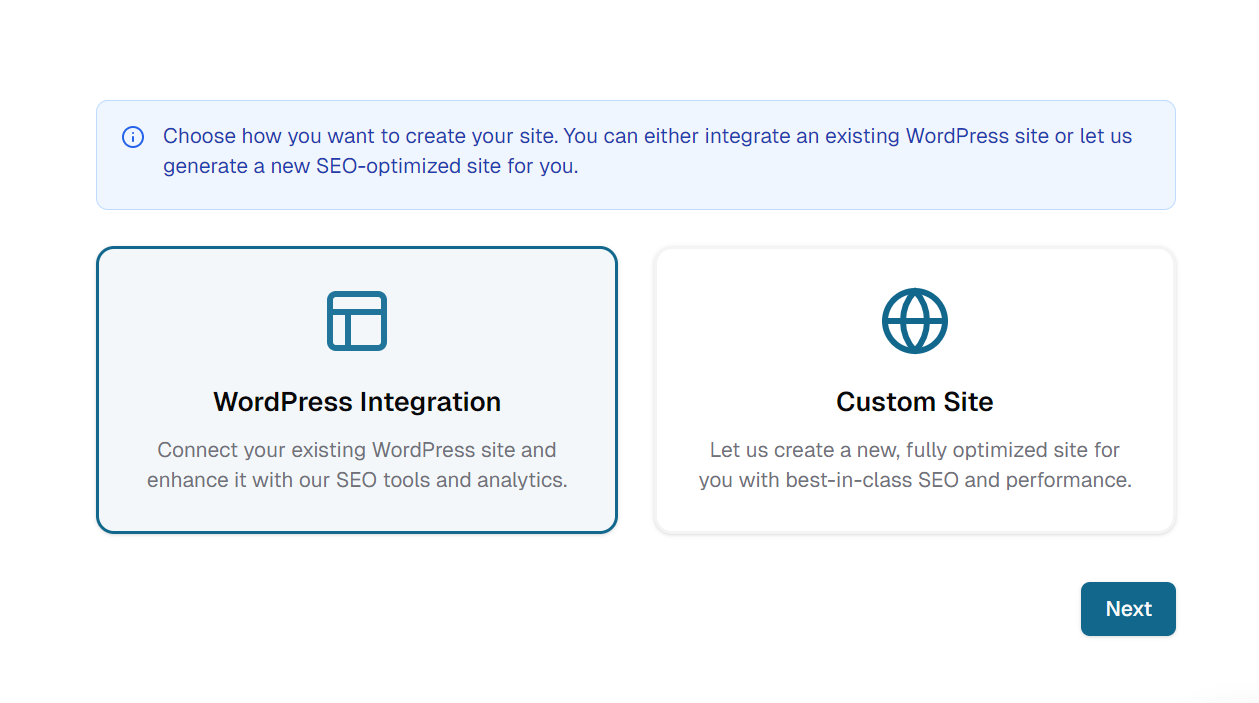
Site Creation Wizard
Follow these four quick steps in the wizard to integrate your client's existing WordPress site with Longest Tail AI.
1. Select Site Type
For the sake of this example, we'll choose WordPress Integration.
Click Next once you've picked your site type.
2. Basic Information
Enter your client's core details, then click Next once all fields validate.
-
Industry
Select your client's vertical (e.g.Personal Injury Lawyer,Solar,Pharmacy, etc.). -
States
Multi-select one or more states to target.- Use (Select All) if you cover every state.
-
Cities
Once states are chosen, pick specific cities. -
WordPress Credentials
-
Site URL
Your client's WordPress site domain. -
Username
Your client's WordPress administrator account. -
Application Password
Generate under WordPress → Users → Profile → Application Passwords (recommended over your main password).
-
3. Content Settings
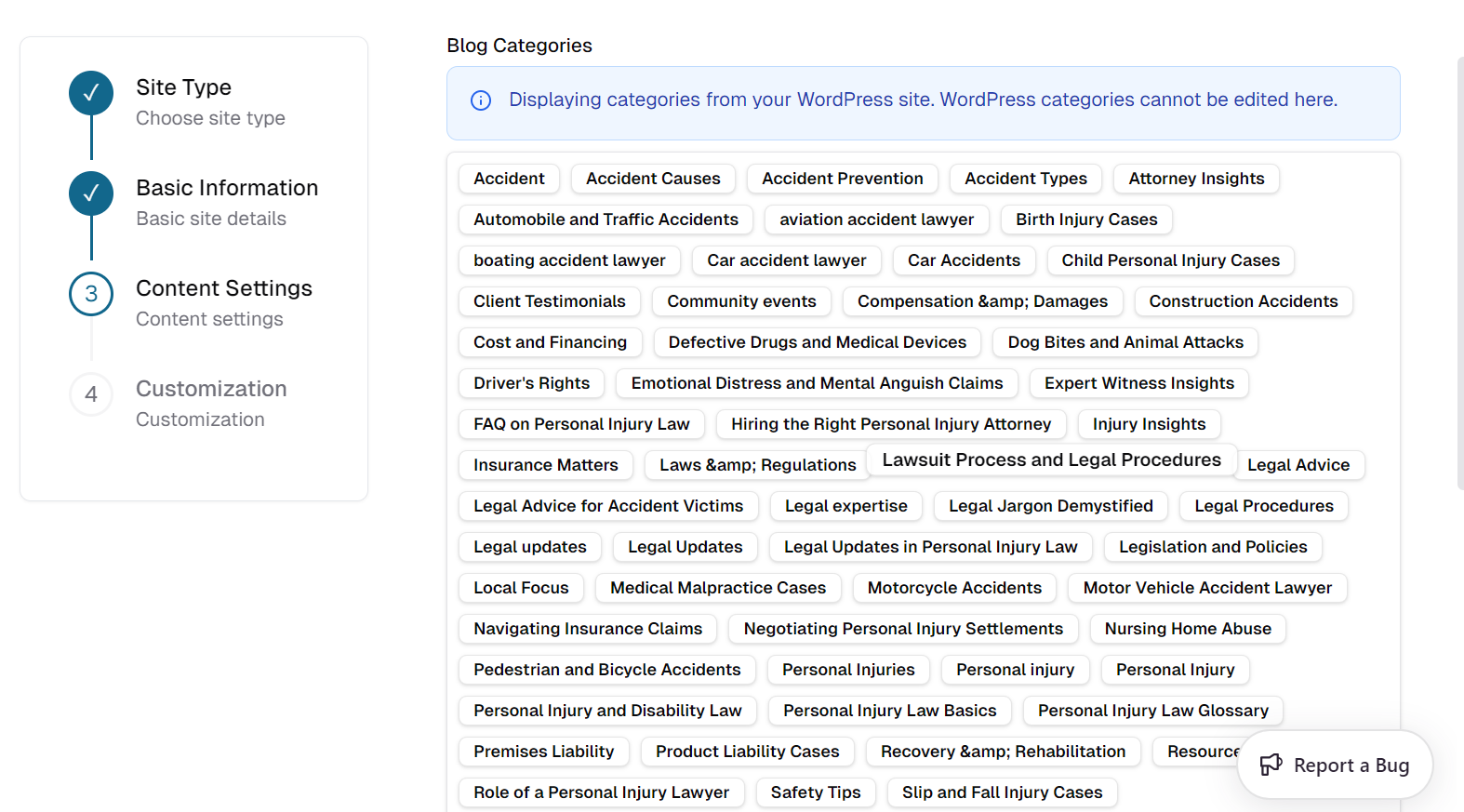
Categories
-
Blog Categories
We display your live WP categories (read-only). -
Tags / Topics
Select the top topics you want auto-tagged on your site. -
Services
Choose from your client's services collection.- If none exist yet, click the create some services link to add them first.
- Or proceed with the default list.
Fine-tune which content elements to import, then click Next.
4. Customization
Make final tweaks, then click Submit.
-
Post as Draft
✔︎ Toggle on to review generated pages in draft before going live. -
Back
Return to any previous step for edits. -
Submit
Kick off site generation and let our AI do the rest.
That's it!
Once complete, you'll be notified and can review or publish your new client site.